Infisical Secrets Manager Setup
Set up Infisical as the secrets provider for ComposeFlux.
See Infisical Documentation for more details.
Steps
1. Create a Project
- Sign in to Infisical.
- Open the Overview tab.
- Click Add New Project.
- Create a project for ComposeFlux secrets.
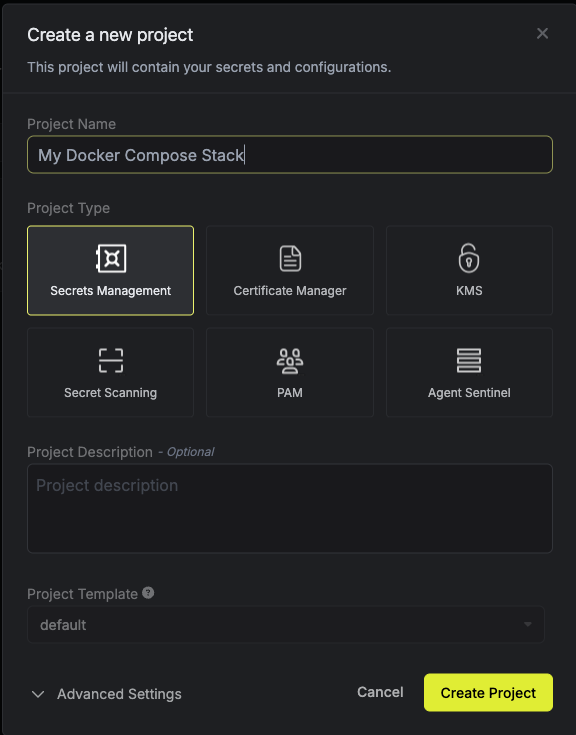
2. Create or Choose an Environment
ComposeFlux uses INFISICAL_ENVIRONMENT, so you must provide an environment slug.
- Open your project.
- Create or choose an environment (for example,
prodordev). - Note the environment slug value.
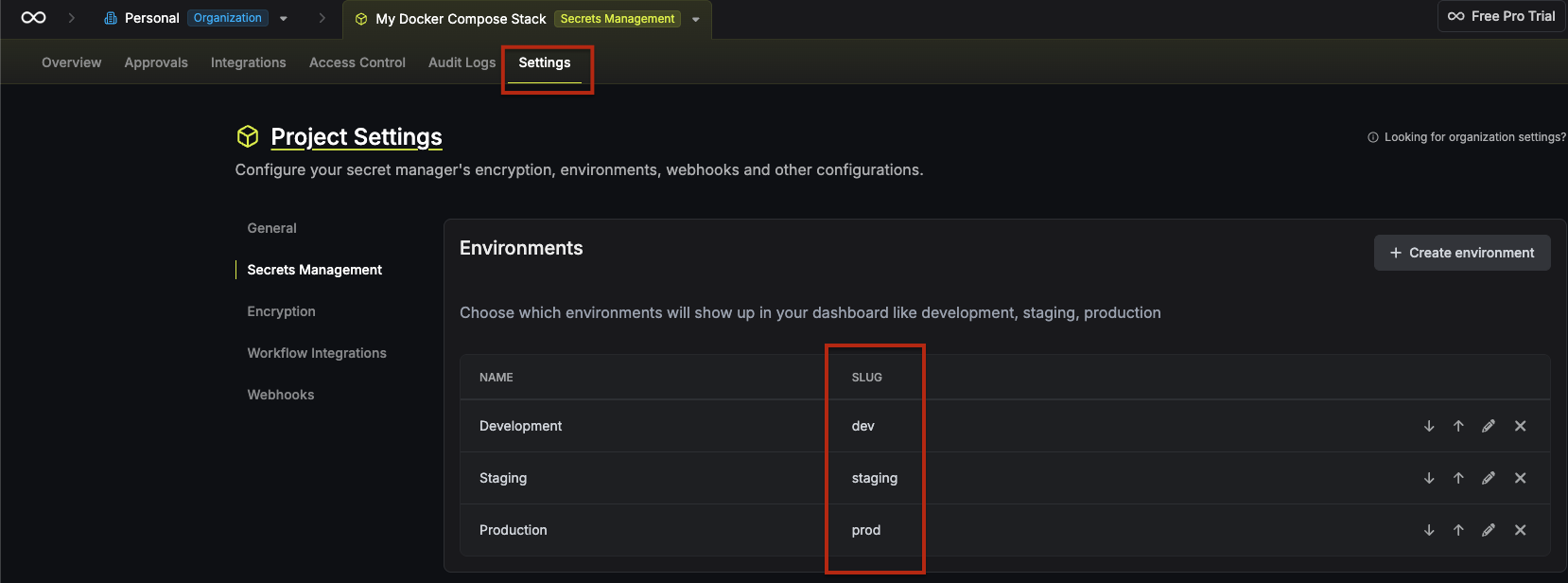
3. Add Secrets
Add secrets in the project environment you selected:
- If you want ComposeFlux to fetch your Git SSH deploy key from Infisical at startup, create a secret with key
SSH_PRIVATE_KEY(or another key name and setGIT_DEPLOY_KEY_SECRET_REFto match). See Deploy Key Secret Reference.
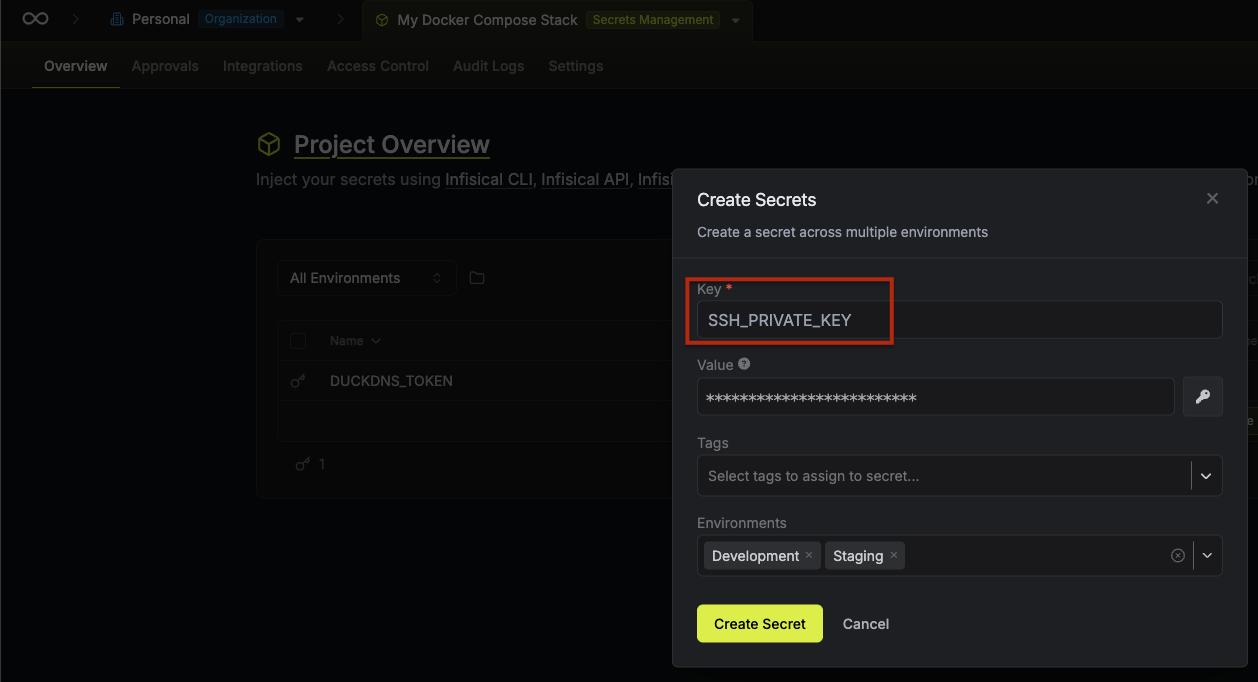
- Add stack secrets you want exposed as environment variables (for example,
DATABASE_PASSWORD,API_KEY).
4. Create Folders (Optional)
Infisical supports organizing secrets in folders. If you use folders, set INFISICAL_SECRET_PATH to the folder path
used by ComposeFlux.
You can also provide a comma-separated list of paths to aggregate secrets from multiple folders
(e.g., /generic,/apps/prod). This is useful for organizing shared secrets separately from environment-specific ones.
Path behavior: - Secrets are fetched from all specified paths - If a path is inaccessible, a warning is logged and other paths are still processed - If all paths fail, the operation fails - If the same secret key exists in multiple paths, the last path's value takes precedence
Example use case: Use /generic for shared secrets (database credentials, API keys) and /apps/prod for
production-specific overrides (values in /apps/prod will override those in /generic).
- In the Overview tab, click Add Secrets and select Add Folder.
- Note the folder path (for example,
/,/apps/prod).
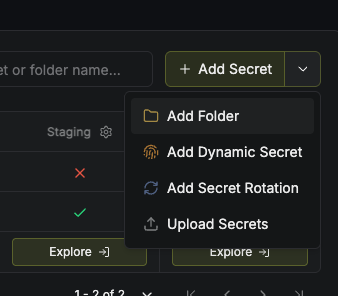
5. Create Machine Identity
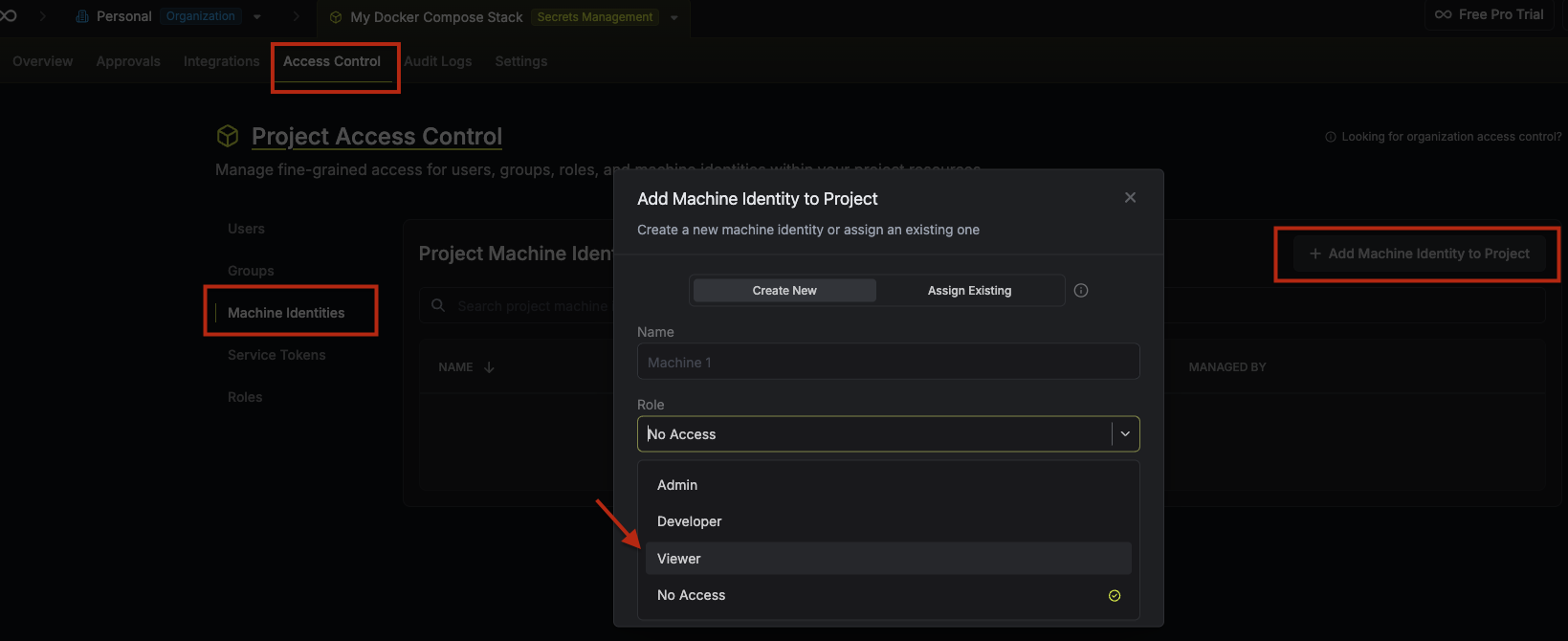
- Go to Project Settings -> Access Control -> Machine Identities.
- Click Add Machine Identity to Project.
- Give the machine identity a name and set Role to Viewer.
6. Generate Client Credentials
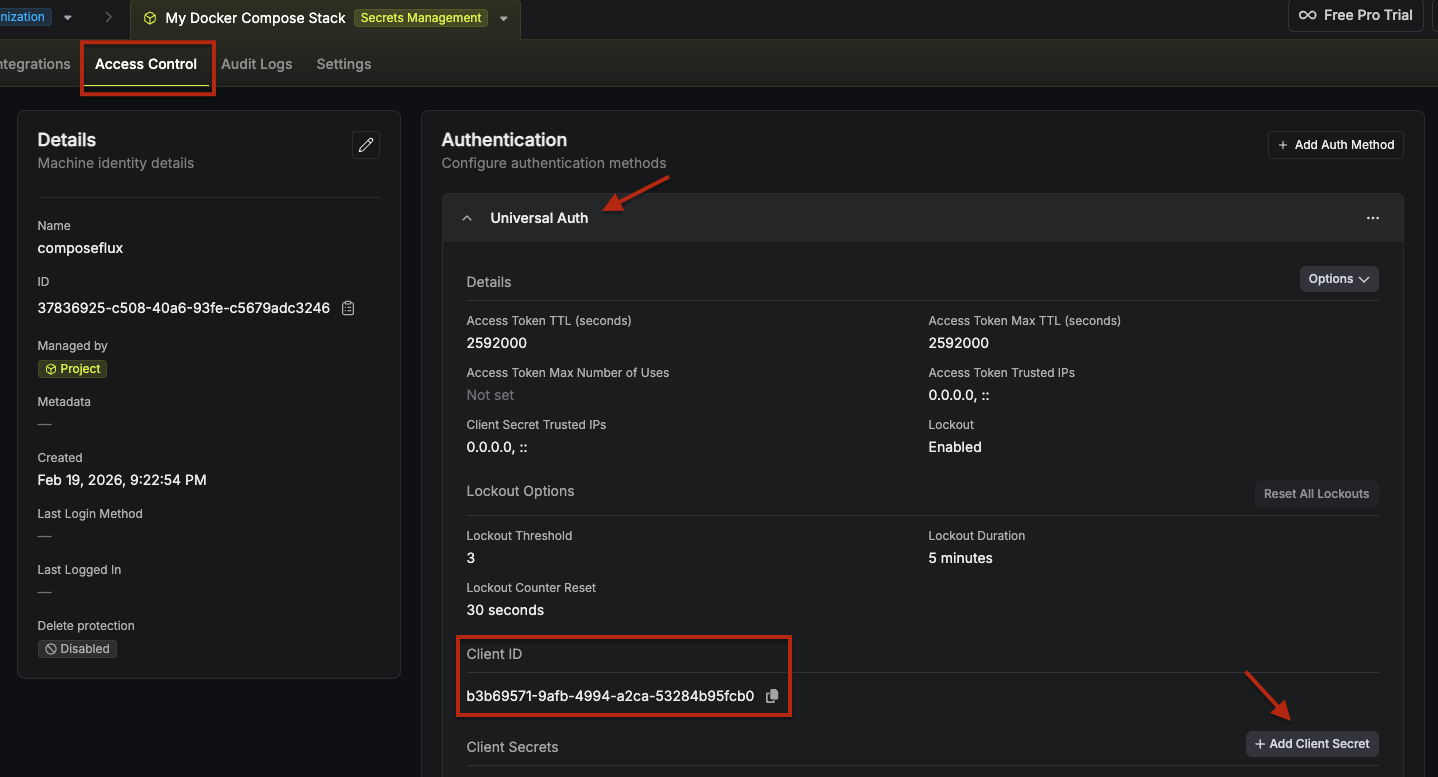
- Open the machine identity you created.
- Expand the Universal Auth section in the Authentication tab.
- Click Add Client Secrets.
- Copy the Client ID and Client Secret.
7. Configuration Checklist
Make sure you have the following values for ComposeFlux:
- Client ID - From Universal Auth credentials
- Client Secret - From Universal Auth credentials
- Environment - Environment slug (for example,
prod,dev) - Secret Path - Folder path where secrets are located. Supports comma-separated paths (default:
/). - Site URL - For self-hosted only (default:
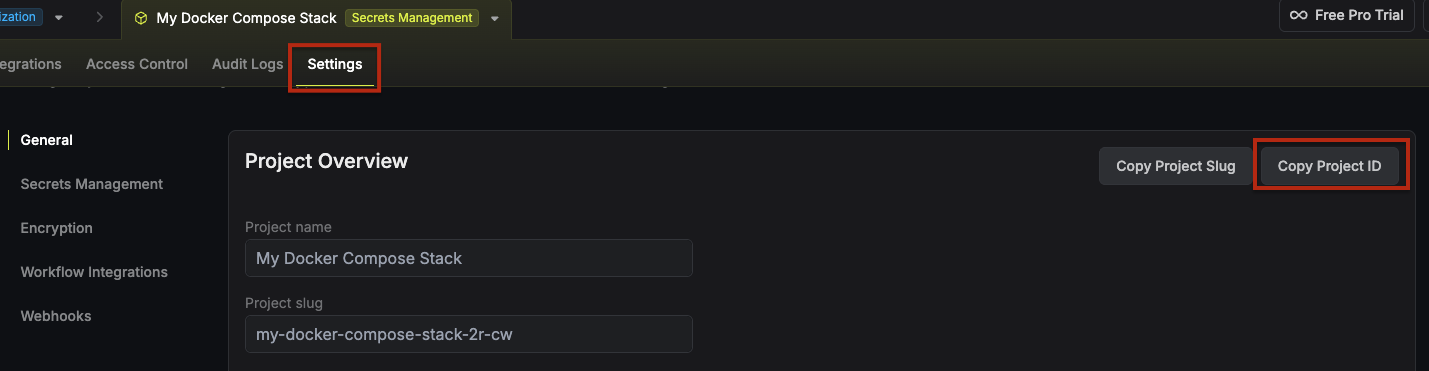
https://app.infisical.com) - Project ID - Found in project settings (see screenshot below)
Environment Variables
Add to your .env or compose file:
INFISICAL_CLIENT_ID=<your-client-id>
INFISICAL_CLIENT_SECRET=<your-client-secret>
INFISICAL_ENVIRONMENT=prod
INFISICAL_PROJECT_ID=<your-project-id>

# Optional (supports comma-separated paths)
INFISICAL_SECRET_PATH=/
# INFISICAL_SITE_URL=https://app.infisical.com

# Optional: only if using a custom key name for SSH deploy key
# GIT_DEPLOY_KEY_SECRET_REF=SSH_PRIVATE_KEY
Usage in Compose Stacks
ComposeFlux fetches secrets from the configured Infisical project/environment/path and exposes them as environment variables using each secret key name.
services:
  app:
    image: myapp:latest
    environment:
      DATABASE_PASSWORD: ${DATABASE_PASSWORD}
      API_KEY: ${API_KEY}